《Fortinet – OMG FortiGate 100D防火墙突然無法開機了,韌體更新/還原全紀錄 – 學習筆記》

這幾天有個學弟的公司防火牆不知道怎麼了,突然就無法開機,Web管理介面無法連接,而接上Console線訊息是Open boot device failed,現在他們公司都跳腳了,而這台也剛好過保固,新的機器還在評估中,而這台因為之前是公司採購找的廠商已經倒閉了,又加上過飽,目前相關SI都不肯接手處理,剛好在我們的系統群組裡面提出了這個需求,他下班後就將機器帶來給我檢查,由於這個問題我想每個系統人員或多或少都會遇到,所以我就將我還原的過程最重要的部分整理成一篇分享給大家。本筆記我會將我所知道的知識分享給大家參考,我也順便紀錄下來當作備忘錄,也希望藉由此次分享讓網路設備維運人員能更快掌握還原的關鍵。
Table of Contents
故障現象
- FortiGate防火牆無法正常開機
- Web管理介面無法連接
- 嘗試重新啟動或Reset原廠設定皆無效
- 連接console線可以看到開機訊息卡在Open boot device failed
※如果以上敘述都有符合,那你的開機系統,基本上應該是壞了,這時候如果你在過保前,有備份FortiGate的韌體(例如FGT_100D-v6-build1232-FORTINET.out檔案),那還可以透過本教學還原你的系統
※依照型號版本不同會有不同的韌體,下載前要注意型號及版本喔!!!
還原步驟說明
1.準備TFTP伺服器軟體
推薦使用老牌TFTP – TFTPD64
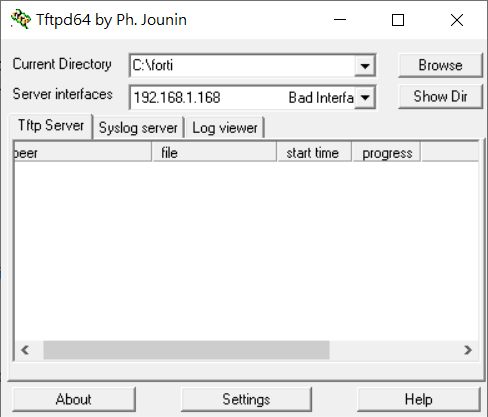
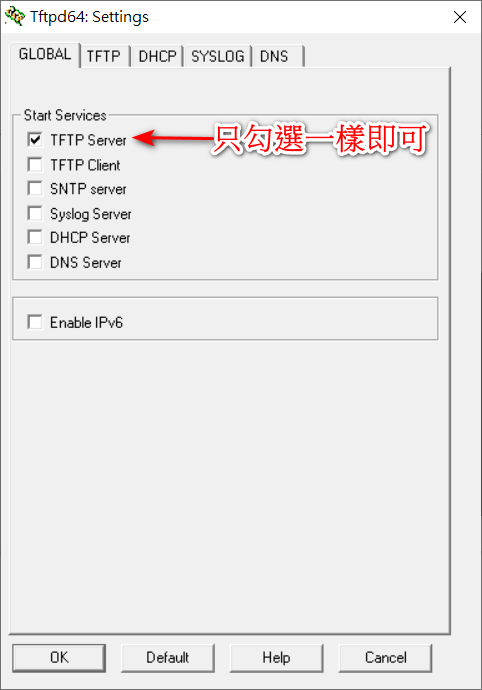
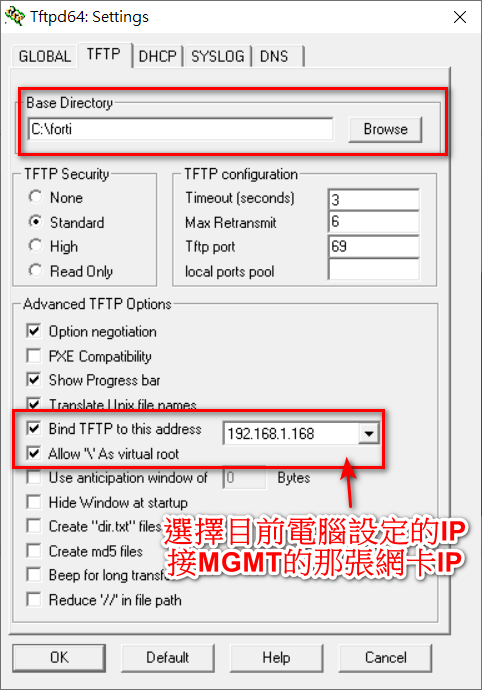
2.下載FortiGate防火牆韌體檔案
從Fortinet官網下載與防火牆型號相符的韌體檔案,下載後記得將你下載的韌體檔名如FGT_100D-v6-build1232-FORTINET.out改成image.out
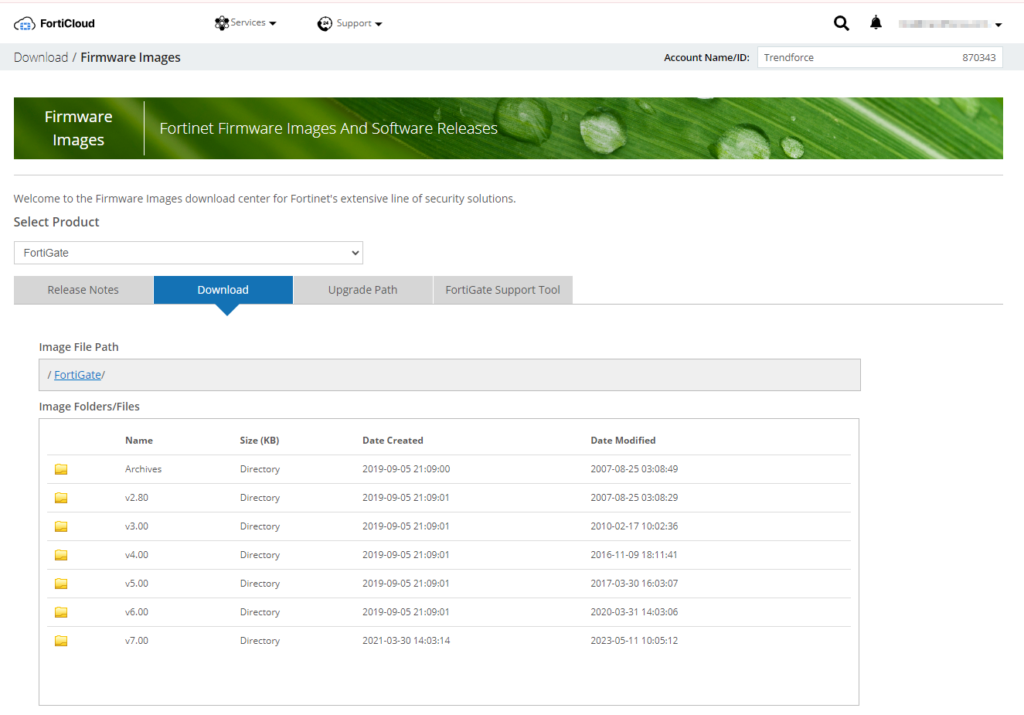
3.透過USB轉RJ-45 Console線連接至FortiGate防火牆的Console Port
- 將Console線的一端連接至電腦的USB埠(記得去買電子材料店買USB to Console母頭的轉接線)
- 將console線的另一端RJ-45連接至FortiGate防火牆的Console埠(見圖2上的Console Port)

4.設定電腦的終端機軟體Putty
設定好後按下Open則開始連線
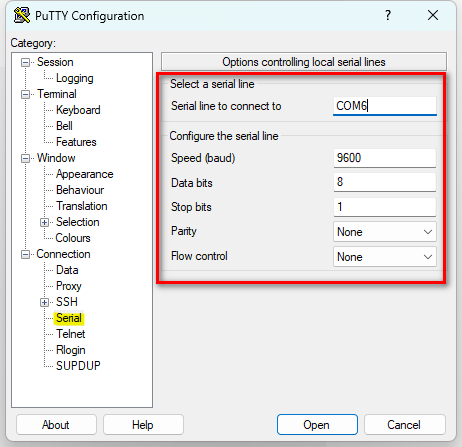
5.接上Console線後,按下主機上回到原廠設定那個按鈕,則Putty上會回傳目前該主機的開機訊息
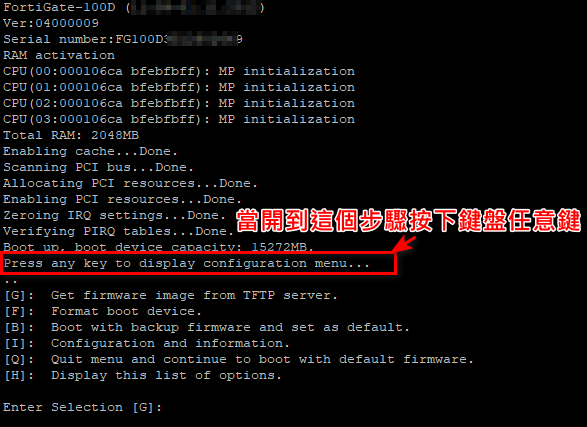
當出現Press any key to display configuration menu…,記得視窗焦點要在putty上並且按下任意鍵,進入功能選單
5.1選擇G 透過TFTP更新韌體
Press any key to display configuration menu...
..
[G]:  Get firmware image from TFTP server.
[F]:  Format boot device.
[B]:  Boot with backup firmware and set as default.
[I]:  Configuration and information.
[Q]:  Quit menu and continue to boot with default firmware.
[H]:  Display this list of options.
Enter Selection [G]:
5.2系統會提醒,請要用TFTP更新韌體時候要將網路接到防火牆上的MGMT PORT見圖2
Please connect TFTP server to Ethernet port "MGMT".

Enter TFTP server address [192.168.1.168]: 192.168.1.168  <=依序設定你防火牆要連接TFTP的電腦IP
Enter firmware image file name [image.out]: image.out <=你從官網下載的韌體記得要Rename成image.out
Can not get local address from DHCP server.
Enter local address [192.168.1.188]: 192.168.1.188 <=防火牆的IP
MAC:0009FFFFFF83
#########################################################
Total 60368943 bytes data downloaded.
Verifying the integrity of the firmware image.

Total 262144kB unzipped.
Save as Default firmware/Backup firmware/Run image without saving:[D/B/R]?D <=選擇D將此韌體image設定為預設系統
Programming the boot device now.
................................................................................................................................................................................................................................................................
Reading boot image 2721231 bytes.
Initializing firewall...
System is starting...
Resizing shared data partition...done
end_request: critical target error, dev sda, sector 31256321
Buffer I/O error on device sda3, logical block 30207744
Buffer I/O error on device sda3, logical block 30207745
Buffer I/O error on device sda3, logical block 30207746
Buffer I/O error on device sda3, logical block 30207747
Buffer I/O error on device sda3, logical block 30207748
Buffer I/O error on device sda3, logical block 30207749
Buffer I/O error on device sda3, logical block 30207750
Buffer I/O error on device sda3, logical block 30207751
Formatting shared data partition ... done!
Starting system maintenance...
Scanning /dev/sda1... (100%)


FortiGate-100D login:   <=當出現這個畫面代表已經安裝完成
6.首次登入系統變更密碼
6.1 初次登入帳號為admin,密碼為空,登入後系統回提醒變更密碼
FortiGate-100D login: admin
Password:
You are forced to change your password, please input a new password.
New Password:********
Confirm Password:********
Welcome!
※如果做到此步驟你都跟我一樣,那恭喜你系統重建完成
注意事項
- 在進行韌體還原之前,請務必先備份FortiGate防火牆的設定檔,平時就要養成定期備份的好習慣
- 如果上述步驟無法解決問題,請聯繫Fortinet原廠客服尋求協助
Reference

你好,我是RD爸,希望透過我的紀錄,可以帶給你一些新的想法~ 專注於各式3C產品的開箱評測、程式相關技術及理財筆記。
email ►[email protected]